On a Friday evening, you want to know in two seconds where the children sleep this weekend. You do not want to retype an address, or hunt for the right tab among ten others.
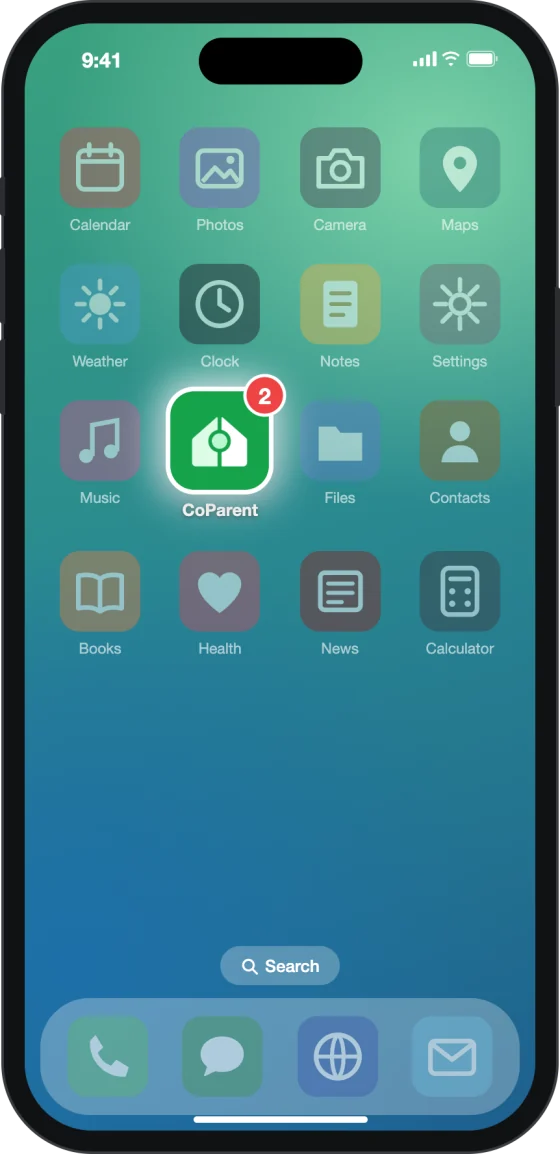
That is what the installable app of CoParent.ch is for: an icon on your home screen, full screen, notifications. We chose not to go through an app store: nothing to download, no updates to install, and the same app on all your screens from the first login.
What "installing" means here
CoParent is a web app. You add it to your home screen from the browser (Safari on iPhone, Chrome on Android). It is not listed on the App Store or on Google Play, and installing it is free.
It is not a second piece of software to keep up to date. It is the same CoParent, with the same account, the same subscription and the same data, just closer at hand.
What you gain day to day
- An icon and full screen: CoParent opens from its icon, without the browser's address bar or toolbar, like the other apps on your phone.
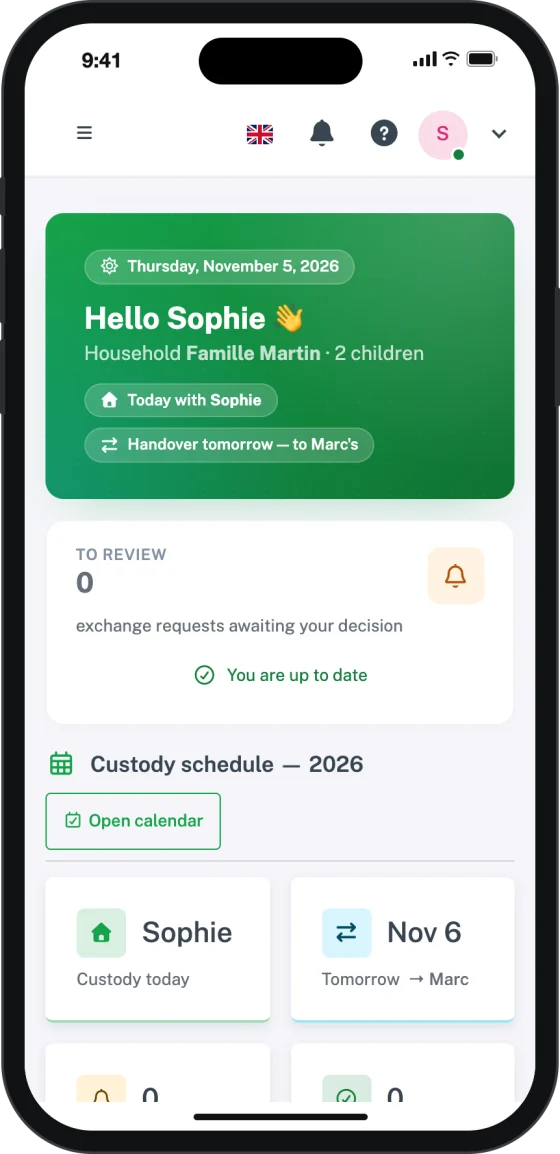
- Straight to your dashboard: the icon takes you to your space. If your session has expired, you go through the login page and then land on the dashboard.
- Notifications: an exchange request, an expense to approve, an upcoming handover, you are told right away. You choose, type by type, what you receive.
- A counter on the icon: it shows the number of items waiting for you (the same figure as the bell), on phones that can display a counter on an icon.
- An easy way back: in the installed app, a back button appears in the top bar on detail pages, and a loading indicator shows while pages change.
- Quick access: the app declares shortcuts to Calendar, Exchange requests and Expenses, which systems that support them offer from the icon.
- Always up to date: new features arrive on their own, with no update to install. What you see on your phone is what your computer shows.
Your custody organisation, one tap away
Every screen of a parent's space is designed to work on a portrait phone. At a width of 360 px, the page does not scroll sideways, buttons are easy to tap and input fields do not trigger an automatic zoom.
Here are three things you will do often.
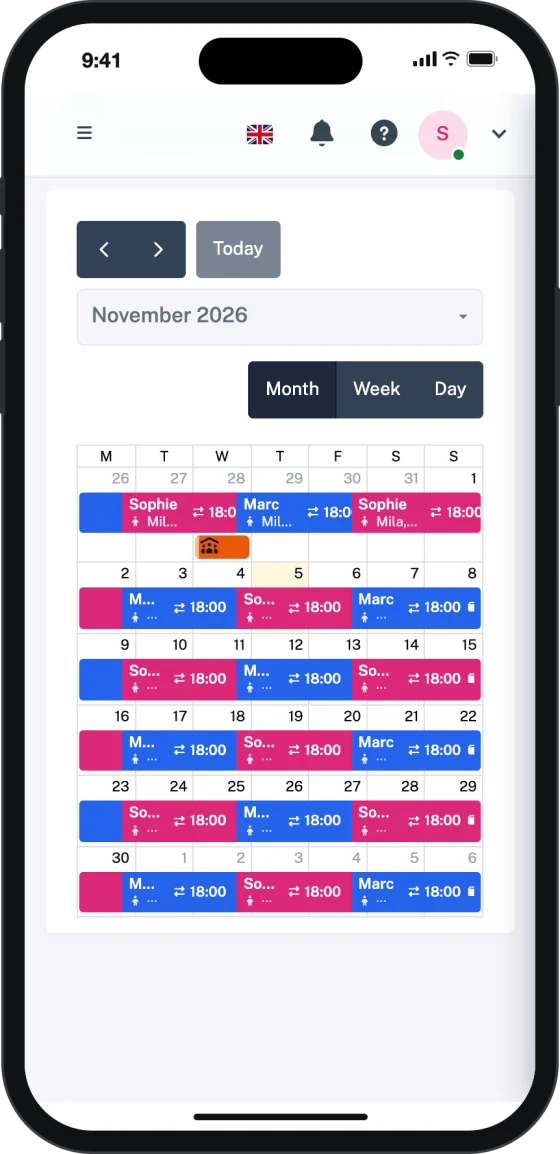
Read the custody calendar
The view offered on a phone lets you read whose day it is and open an appointment with a tap. You check a handover from the school gate, without opening a computer.
Answer an exchange request
When the other parent proposes swapping a custody day, you get a notification. You open the request, accept or decline it, and nothing changes without both parents' agreement.
Write to the other parent
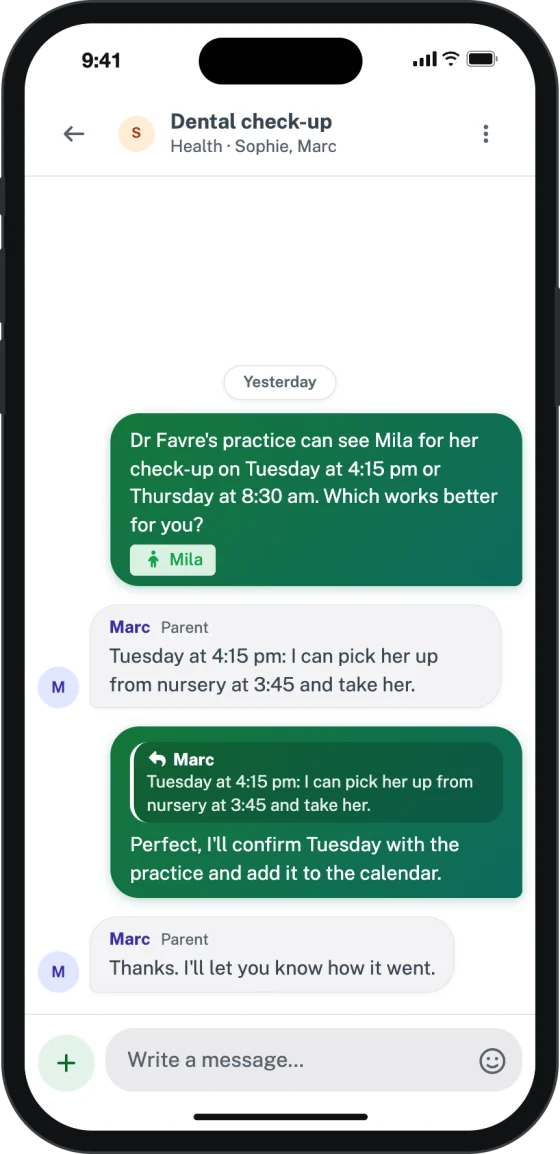
With the Communication option (CHF 4.- per month on top of the base plan), exchanges happen in threads by subject. On a phone, the thread fills the whole screen and the input area stays above the keyboard. When a message arrives, it appears without reloading the page, and you are notified.
Log an expense when it happens
The expense form can be filled in on a small phone with no zoom and no sideways scrolling, and the save button stays reachable while the keyboard is open. You can also look at your documents from the same home screen.
How to install it
It takes a few seconds. First log in to CoParent in your browser, then follow the steps for your phone.
iPhone and iPad (in Safari)
- Open coparent.ch in Safari and log in.
- Tap the Share button (square with an arrow) at the bottom of the screen.
- Scroll down and choose "Add to Home Screen", then tap "Add".
- Open CoParent from its new icon. Log in once in the app: it then keeps you logged in.
Android (in Chrome, Edge or Samsung Internet)
- Open coparent.ch and log in.
- Tap "Install" in the CoParent banner, or open the browser menu (three dots) and choose "Install app".
- Confirm: the CoParent icon appears on your home screen and in your app list.
When you are logged in on a phone, you also see an invitation to install CoParent; you can dismiss it, and it does not come back for 90 days. Installing also works on a computer (Chrome, Edge, or Safari on Mac). All the steps are on the Install the app page.
Last step: switch on notifications. From the installed app, open your profile, then Notifications. The install banner reminds you, and until then CoParent emails keep you informed.
Good to know
Installing from the browser is a choice: simplicity, privacy and instant access on all your screens. Here is what it means in practice.
| Topic | What to expect |
|---|---|
| Without a network | CoParent needs the internet to show your data up to date. Without a network, you see a "No connection" page in CoParent's colours, in your language, with a "Try again" button. You never see an outdated copy of your calendar. |
| Notifications on iPhone | On iPhone and iPad, notifications arrive in the app installed on the home screen, once switched on from your profile. You do not miss anything in the meantime: emails stay on by default for important notifications (exchange requests, pending follow-ups, last-minute changes), and you can add text messages in your notification preferences. |
| Counter on the icon | It appears if your phone supports it and you have allowed notifications. |
| No store | Nothing to download from the App Store or Google Play, and no store account needed: you install from the browser in a few seconds. |
Free, and your data stays in Switzerland
Installing the app costs nothing and does not change your subscription. The base plan is CHF 8.- per month for both households, and the other parent pays nothing. The free trial needs no credit card. Details are on the pricing page.
The installed app keeps nothing more on your phone than the website: your data stays on our servers in Switzerland, processed under the Swiss nFADP and the GDPR.
To discover the custody organisation itself, visit the Custody module page. Ready to carry it in your pocket? Start the free trial, then add CoParent to your home screen.